
Stay on the action.
Select cars and camera angles, slow down replays, and save moments to revisit. Use your transition when switching between replay and live coverage.
Broadcast Suite / iRacing broadcast software
Live timing. Replay control. Your own graphics.
One casting workspace for your iRacing broadcast.
Monthly billing. Cancel renewal anytime. Your paid access continues through the end of the billing period.
See what you are getting
See the graphics your viewers see, then explore the caster tools behind your coverage. These previews use sample data; live coverage runs through your Windows Hub.
Positions, car numbers, driver names, gaps, session information, and flags give viewers context while you call the race.
Browse driver banners, battles, flags, pit updates, championship graphics, results, track maps, and session screens.
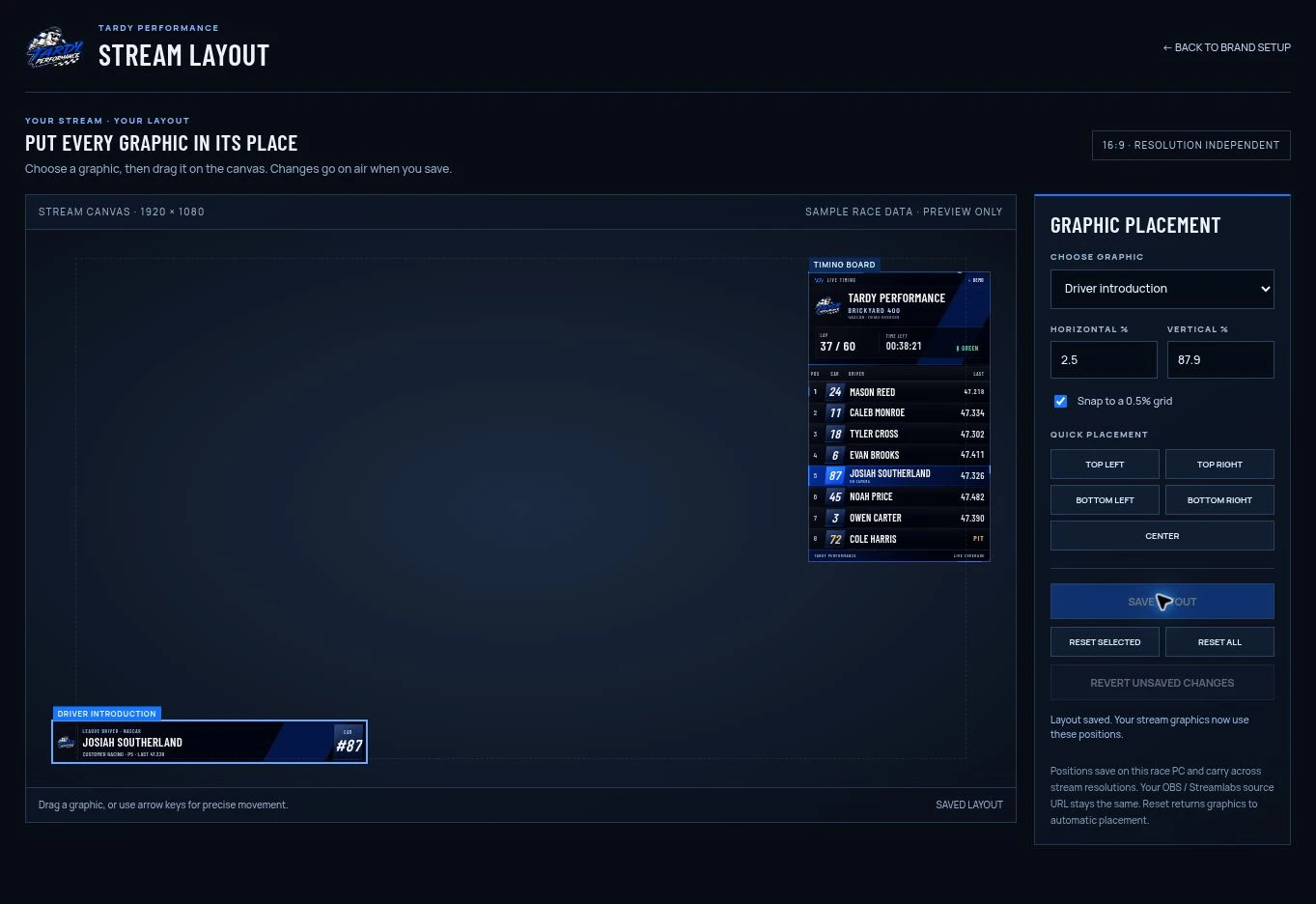
Drag the timing board, driver cards, alerts, and other graphics on a 16:9 canvas. Each graphic keeps its own saved position.
Actual editor with sample race data. Open Brand Setup → Arrange on-screen graphics in your activated Hub.
Enlarge the layout editor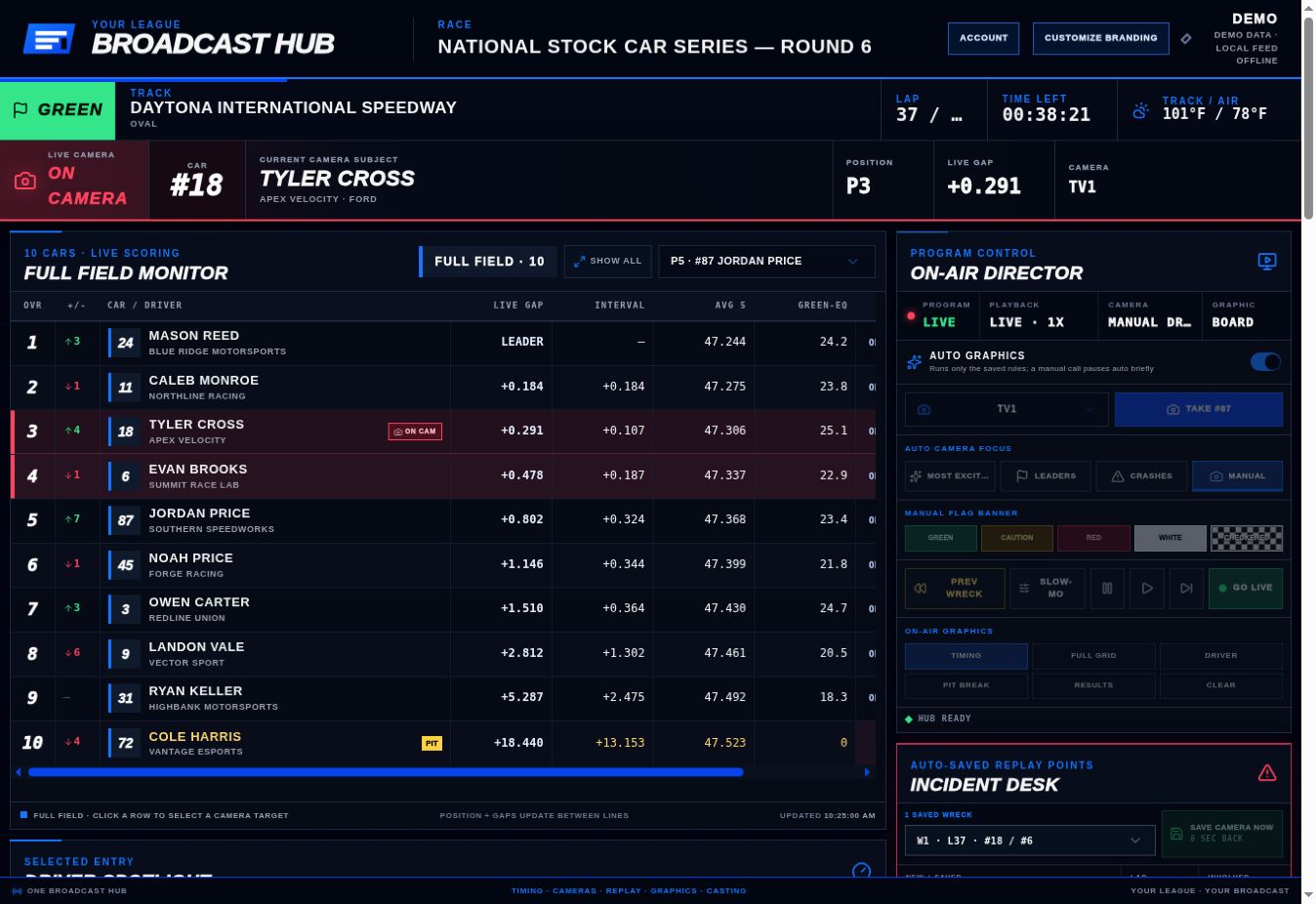
Follow race order, see the driver on camera, and move between cars, camera angles, and saved replay moments from one workspace.
Driver spotlight, recent pace, close battles, stint age, pit-window estimates, position changes, and race moments help you prepare the next call.
Fuel, stint, and strategy values are estimates based on observed running.
Open the caster information previewAdd your logo, colors, artwork, league name, viewer titles, and replay transition. Keep transparent logos free of a background box, or choose your own background color.
The preview is read-only. Uploads and saves happen in your activated Windows Hub.
Open the Brand Setup previewOne subscription. The complete toolkit.
Use the tools you need for your race, from a solo stream to league coverage. Custom branding is included.
Select cars and camera angles, slow down replays, and save moments to revisit. Use your transition when switching between replay and live coverage.
Timing, driver banners, flags, battles, leader updates, and championship graphics. Call them manually or use automatic cues.
Your logo, colors, titles, and transition. Drag each graphic into place and save a layout that fits your stream.
Automatic incident detection is still being refined. Manual replay selection and saved checkpoints are available.
Ready for your next broadcast?
The Casting Center, Windows Hub, viewer graphics, caster information, and your branding are included in one monthly subscription.
Requires Windows, Python 3.10 or newer, iRacing spectator access, an internet connection, and OBS or Streamlabs. Your race PC needs active account access.
From checkout to the grid
Sign in with your customer email and choose monthly access through secure checkout.
Download and extract the Hub ZIP, start the Windows launcher, then use Find This Race PC in your account to activate it.
Add your logo and colors, arrange your graphics, and save the layout. Add the Hub browser source to OBS or Streamlabs and check your scene.
A clear start
Practical guides for OBS, Streamlabs, and league replay coverage. Read them before you subscribe or keep them beside you during setup.
Connect the Windows Hub, add your browser source, and check your scene before going live.
Read the OBS guide02 / StreamlabsAdd the Hub overlay to Streamlabs and keep it aligned with your racing footage.
Read the Streamlabs guide03 / Race directionSave the moment, call the replay, and return to live coverage with a transition.
Read the replay guideYes. Both use the browser-source link served by your Windows Hub. Keep the Hub running on the PC connected to iRacing.
Yes. Brand Setup includes logos, colors, artwork, viewer titles, transparent logo backgrounds, and a custom replay transition. The layout editor saves a separate position for each graphic.
A Windows PC, Python 3.10 or newer, iRacing with spectator access to the session you are casting, OBS or Streamlabs, and internet access for sign-in and activation renewal.
No. The previews use sample data from the actual suite. Live timing, camera controls, replay playback, and branding saves run through your Windows Hub.
The Hub has no five-hour session timer. An authorized broadcast can finish even if its activation expires during the session.
Open your customer account and select Manage Billing. Cancel renewal there; access remains available through your paid period.
Use the report box in your customer account for bugs and feature requests, or email tardyperformance@gmail.com.